Selected

The Brightest WWDC in Years

 4 min

I came away from this year’s WWDC keynote surprisingly optimistic.

For the past decade, I’ve been waiting for Apple’s marketing department to stop chasing spectacle and let the designers and engineers get back to doing their jobs. Every year the company tried harder to impress us with the scale of its announcements, while the substance kept shrinking and the quality of execution kept deteriorating. Great features from the past were left to rot. The system became less reliable year after year. Time Machine got flaky. Spotlight got worse. Even something as basic as drag and drop became less dependable. And on top of all that, they created Liquid Glass, making everything not only work poorly, but look bad too.

When Alan Dye left, I started hoping that Apple’s design culture might finally begin to change. The company was never going to come out and say, “We are reverting the changes”. But I kept telling friends that we’d be able to tell from the small details whether there was any reason for optimism. You don’t have to say “Liquid Glass was a mistake” (even though it clearly was) — you can make a handful of changes, call them an “evolution” of Liquid Glass, and anyone paying attention will understand that a different era has begun.

That’s pretty much what happened.

First, the interface changes were presented by an actual interface designer. He opened by saying something along the lines of: “It’s okay not to get everything right on the first try. We listen to feedback and improve based on what we hear.” On the one hand, that’s a terrible message: it’s not okay, that’s how design works in corporations that don’t really know how to design. Apple has the expertise to get things right from the start. But on the other hand, it’s a very encouraging message. It’s about as close as Apple can get to publicly admitting that last year’s design direction was wrong. More importantly, it shows self-awareness: “We know we shipped shit, and we know you think so too”. That’s the foundation of meaningful improvement.

Second, they fixed some of the most baffling design decisions. Toolbars are back. The awkward floating sidebar is gone. Window corners finally make sense again. Menu icons have been removed. Safari still looks crappy, but maybe there’s a setting for that somewhere, or maybe they’ll keep refining it over the summer. These are small changes. But if Apple keeps moving in this direction for a few years, the Mac might eventually become nice again. They also added an interface for accessing menu bar items that don’t fit on screen. It’s not particularly elegant, but at least it exists.

The design problems weren’t the only issues that had been piling up over the years, the implementation was also bad. The announced transition from Tim Cook to John Ternus gave me some hope. Cook is fundamentally a manager; Ternus is fundamentally an engineer. Still, I wasn’t expecting much.

Yet the keynote delivered several encouraging signals on the engineering side as well.

For one thing, Apple effectively admitted that Spotlight search — once one of the company’s proudest achievements — had degraded to the point of being genuinely unreliable. They announced significant improvements, and I hope they’re real. That said, I’ve learned not to get too excited. Apple has been promising keyboard autocorrect improvements every year for as long as I can remember, and it remains stubbornly bad.

More importantly, they acknowledged that many parts of their systems have become inexplicably slow, and they showed a slide listing dozens of performance improvements across the platform. Again, I’m trying not to get ahead of myself. But recognizing the problem is an essential step toward fixing it. One moment was hilarious: Apple said that the Files app on iOS would become five times faster, bringing it up to the speed of Finder on the Mac. I hadn’t used the Files app, but does this mean they were even slower than Finder?.. At that point you could argue it barely worked at all.

I noticed several popular tech commentators complaining that this WWDC wasn’t particularly exciting. That reaction makes me sad. The obsession with putting on an impressive show instead of building better products is exactly what got Apple into this mess in the first place. It reminds me of voters who reward the loudest populists, reject sensible alternatives, and then act surprised by the outcome. If anything, we should be encouraging Apple in this direction. Stop spending so much energy trying to impress us. Spend that energy making the products better, and we’ll be impressed.

I’d love every WWDC to look like this. Not “Here are ten revolutionary new things.” Instead: “Here are two hundred small things you use every day. We made all of them a little better.”

Dear Steve Lemay

Dear Steve Lemay,

Please consider paying some attention to fixing the user interface problems Jony Ive and Alan Dye have made during their years.

This list is a mix of general interaction problems, performance issues, inconsistencies, missing feedback, data-loss bugs, and seemingly minor annoyances. These are the things I happen to encounter in my own workflows every day. Another user would produce another list, and that’s what worries me. No single person can even keep track of all the problems anymore. User interface quality has decayed at every level, from fundamental interaction design to tiny details that used to be polished.

A matter of honour:

  • Fix scrolling and interaction during drag and drop. Mac has been famous for its great drag and drop support: everything stayed interactive during drag and drop. Now it works only sometimes. In Music, if I drag a new song and try to scroll the list to put the song in a particular place, it would not scroll. In Finder, if I drag a file, it usually lets me scroll, but no longer lets me press Space to open folders.
  • Fix drag and drop to the Dock according to Fitts’s Law. After the Dock has been detached from the screen edge, clicking the Dock icons at the very edge still works, but drag and drop to the Dock icons now requires precise aiming. The very fact that clicking still works means that somebody hard-coded this sloppily instead of actually architecting the hit area to extend to the screen edge.
  • In Liquid Glass, stop providing feedback on touch when the touch is not actually doing anything.

Text input on Mac:

  • When a typing suggestion appears, and I continue typing the very suggested text, the suggestion should not disappear. Let’s say I mean to enter the word “something”. I type “som”, the system suggests “ething”. If I miss the suggestion and continue typing “e”, the suggestion disappears. This happens all over the system including email and Safari address bar.
  • Fix text selection, where pressing ↑, ↓, Shift ↑, or Shift ↓ would sometimes stop extending selection for no reason.
  • Keyboard layout switching should be instantaneous on Mac. It has been painfully slow forever, this one is not Ive’s fault. When you switch layouts and start typing, a few characters may get entered in the previous layout.

Text input on iPhone:

  • iPhone Keyboard has been slow to open and slow to type for many years. Sometimes it gets slightly better, sometimes slightly worse, but there is no reason for it not to be absolutely instant all the time.
  • When moving the text caret freely with the Space bar, it would sometimes land in a completely random place after I had positioned it exactly where I wanted. The same with adjusting selection.
  • When you select a piece of text (usually in Notes app) while the keyboard is not visible, there is no way to delete or cut it. So you have to tap to reveal the keyboard, which resets the selection.
  • When I tap in a text field, show the Cut / Copy / Paste controls immediately, instead of randomly between “immediately”, “in 1 second”, “never”, or “show some other set of controls”.
  • When pasting with Universal Clipboard, stop showing the dialog box with fake “pasting” progress bar after the text has already been pasted anyway.
  • Keyboard layout switching order should be predictable on iPhone. It makes no sense and feels even worse than random. When you have three layouts installed, layout 1 is active and you want to switch to layout 2, it somehow “guesses” to switch to 3 (why?), then back to 1 (why!?) and only afterwards, to 2.

Finder:

  • Fix space bar not opening folders during drag-and-drop, as mentioned earlier.
  • Fix free space not updating for hours in the Status Bar.
  • Fix displaying “0 items” in the Status Bar when there are actually items.
  • Fix “Loading” sometimes displaying in folders right over the items which have long loaded.
  • Fix preview pane forgetting to show or update file measurements.
  • Fix the Enter key not working in the “Rename files” dialog.
  • Fix Search not finding files that are in iCloud, while displaying them without any problem.
  • When I rename a file, don’t rename it back to its previous name for a second and then rename to what I wanted, while animating the file around the screen like crazy. Just immediately rename to what I wanted and don’t animate anything for God’s sake.
  • When I drag a file from Safari or Mail onto the Desktop, show it there immediately, not after a three-second delay.

Safari:

  • When I type an address, then press Enter, then change my mind and press Escape, don’t erase the whole address, just stop loading! I just want to fix a typo and press Enter again. How could any sane person come up with the idea to erase the address on Escape?
  • Just always remember what I typed into the address bar. Even if the website is not responding, or I try to move the tab to another window, or whatever happens. Don’t be confused, it’s just a string, you can remember it.
  • When I type an address, and Safari suggests something, and I press backspace because I don’t like the suggestion, don’t put the suggestion back because you know better; I’m the one who knows better, and I just pressed backspace, so respect it.
  • When I accidentally press Sign in with Apple somewhere, Safari hangs for a couple of seconds before displaying the dialog; display the dialog immediately and let me close it with Escape immediately.
  • When I change the zoom level, don’t snap back to default zoom level in one second.

Photos app:

  • Fix the absent or inadequate feedback in the Sync now / Resume / Stop syncing / Settings (Not enough local storage) control (works badly on all platforms).

Preview app:

  • When I open a document while there are already some other documents open, don’t first close all other documents, then reopen them in random order in random desktops; just open the one I asked for, and in the desktop I was in.

Settings app:

  • Fix Settings app resetting to General after some time of inactivity. Why, why?
  • Fix search never finding obvious things or remove it altogether, if school-level engineering to implement text search is no longer present at Apple.
  • Fix Desktop wallpaper selection UI not providing any feedback.

Music app (this is so broken that nothing would help, but still):

  • Fix search and navigation that are completely insane right now.
  • Fix ⌘N/⌘P in Get Info dialog not working when “Genre” field is in focus.
  • Fix the “Genre” field itself being wrong size and buggy as hell.
  • Fix text fields ignoring Capitalize / Make Lower Case commands and just leaving text unchanged.

Notes app:

  • Fix clipboard not working after some time. This is a data-loss bug that stays unfixed for many years already.
  • Fix sloppy style copying. Sometimes if you copy and paste text (when clipboard is still working in Notes), it would sometimes copy the style of only a part of that text, but match style for one or several final lines.
  • Fix caret speed degradation. The older the note, the slower the caret is moving inside it. After a couple of months of many edits a day, a note becomes so slow to work with, that you have to create a new one, copy the text to it and delete the old one. And then spend time re-linking all linked notes to the new one.
  • Fix text selection forgetting its direction mid-way. Sometimes you start selecting from right to left (i.e. by holding Shift + left arrow) and while you are still trying to extend selection to the left, Notes app accidentally decides to start shrinking your selection from the right.
  • When reopening the app, sometimes it decides to collapse all folders in the list of the left. Don’t do that.

All Mac apps:

  • When I press ⌘P accidentally, the system hangs for several seconds before displaying the Print dialog (which I don’t need, of course, because I don’t have a printer and I have no idea why anyone would have it). Since I hadn’t intended to press ⌘P, I have no idea why the system hung, so for me the system just hangs for no reason, and after several seconds I learn: oh, it’s because I pressed the wrong button. All this is to say, there is no reason on Earth to take time to display the Print dialog, just display it immediately!

Quick Look

  • Fix window resize hit area not matching with cursor reaction area (make no mistake, this has been a problem long before Tahoe).
  • Fix window dragging. Quick Look used to have a nice property where you could drag its window from anywhere, but now you need to aim at the window title.

Spaces:

  • Stop randomly switching spaces when I switch between apps whose windows are available in multiple spaces.
  • When I switch from space to space when the active app is set to display in all spaces, don’t leave the app in the outgoing space and then suddenly bring it to front in the incoming spaces (sometimes); just leave the app stable where it was for the whole process and never change the active app.
  • When I click a link and it opens in Safari, don’t switch me to another Space with another Safari window for no reason.

Wi-Fi on Mac:

  • Fix Wi-Fi icon and network selection on Mac. When I disconnect from a particular network, don’t randomly decide to turn off Wi-Fi completely, just disconnect from the one network. If I change a network while trying to connect to another network, don’t then randomly connect to the first network anyway because it finally responded. If I turn off Wi-Fi while trying to connect to a network, don’t turn it back on when the network finally responded. Always respect my latest choice.
  • Fix the list of Wi-Fi networks jumping down in a second after opening and having me aimed at a particular network because it finally realized it should also display Personal Hotspot before everything.
  • Fix select-by-typing not working in the Wi-Fi networks list menu.

Wi-Fi on iPhone:

  • Fix Wi-Fi management on iPhone. I had never understood what the third “neither off nor on” Wi-Fi state means and how exactly it works, but at least make the feedback consistent. Sometimes I tap the Wi-Fi icon in the Control Center several times, and it doesn’t change state, it just responds with something like “Disconnecting until tomorrow” on every tap, and there is no way to connect. Sometimes tapping does not turn Wi-Fi off or turns it off some time later than you tap, or turns it off, but then back on in a few seconds.
  • Fix Wi-Fi status display consistency. This has been a problem forever: sometimes you would see LTE in the Status Bar, but a clearly connected Wi-Fi network in the network list; other times you would see the three perfect Wi-Fi waves in the Status Bar, but some intermediate “connecting” state in the network list. This is crazy, they should both get their information from the same source.

Screenshots and screen recording:

  • Remove the delay before the screenshot tool appears after I press the shortcut.
  • Fix the bug where a couple of seconds after I start screen recording are not actually recorded.
  • Remove the delay before the screenshot file appears on the Desktop after I make the screenshot.

Again, this is far from being complete, of course, it’s just something that bothers me every day and comes to mind automatically. These are not just my pet bugs. Fixing every single one of them will make the platforms only marginally better. This list demonstrates how Apple platforms increasingly feel unpredictable, unresponsive, and disrespectful to the user’s intent. The decline in user interface quality, especially on the Mac, has been profound, and Apple needs years to recover. I don’t expect Mac to quickly become as good, consistent, and fast as it was twenty years ago.

But I’d like to see some evidence that Apple at least understands the problem and takes some steps towards fixing it.

Good luck!

Design is dead, it’s all evolution now

There’s no design in digital products anymore. It’s been replaced by evolution.

When I was reading Richard Dawkins about evolution, one example stuck with me: the giraffe’s laryngeal nerve. It connects the larynx to the brain, but in a giraffe it runs all the way down the long neck, loops around the aorta, and then comes back up. Logically, it should run straight from the head to the larynx. But the giraffe evolved from a short-necked ancestor that already had this loop around the aorta. As the neck grew, the nerve simply stretched.

Here’s another example: Instagram. It used to be a timeline of photos from the creators you liked. Then direct messaging was added, and the feed got scrambled with ads and videos. Then the developers copied Stories from Snapchat. They didn’t really fit the feed, so they were stuck on top as little circles that live separately from the feed and use different gestures. Then, in various places, they shoved in live streams (not the same as videos), something called IGTV (also different), and Reels lifted from TikTok (different again). Reels got their own tab with its own set of gestures.

Design and evolution

There was a time when products were designed with intent. Sections were organized into a hierarchy, features were given logical places. You could feel a system behind the product: what parts it consists of, how screens are organized, what kinds of data it has. Users didn’t analyze it consciously, but it helped them navigate and gave them a sense of control.

That’s not how it works now. Instead, teams make hundreds of random changes, keep the winners, roll back the losers. In the end, nobody sees any logic in the product. Users post the same photos in Stories “just in case” (because nobody finds them in the feed anymore, and users know that). Reels, in turn, somehow leak into the main feed (because lots of people never visit the Reels tab, and the developers know that).

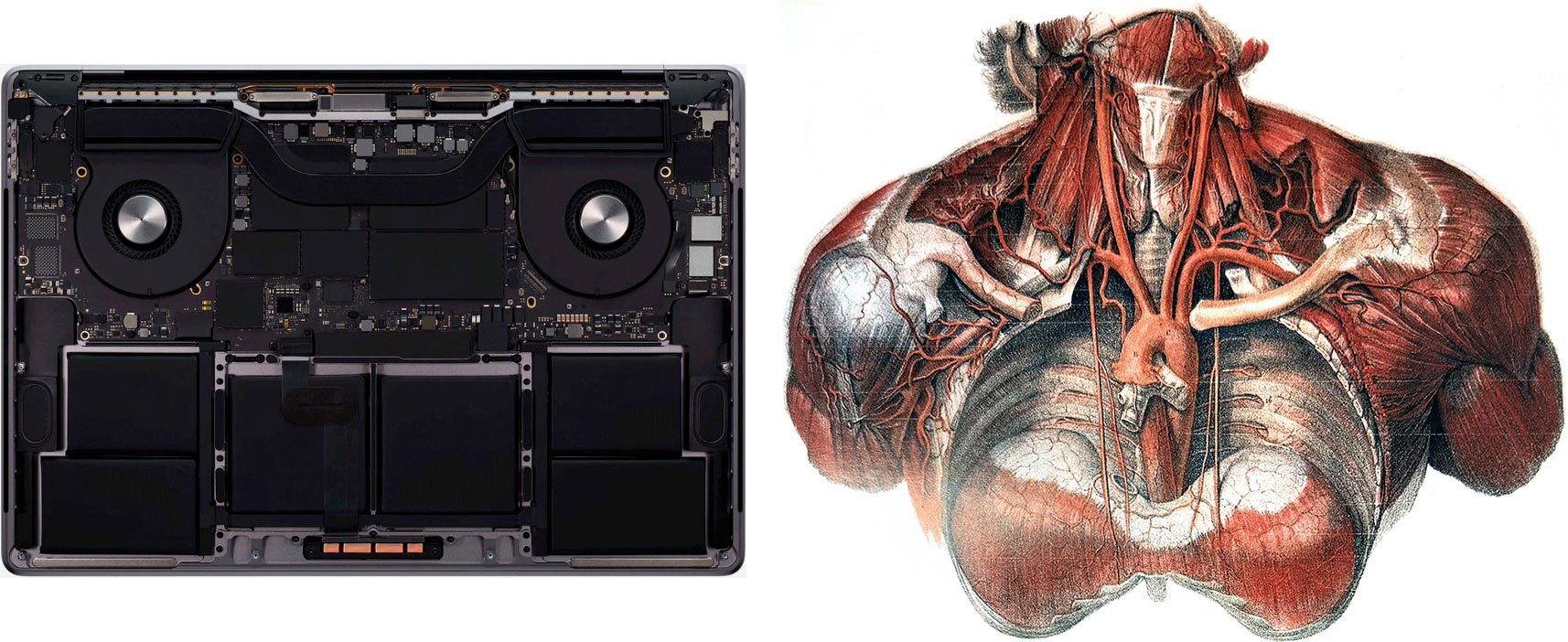
Just as a giraffe is a messy tangle of nerves, guts, and bones, Instagram is a mess of features with no logic, order, or plan. In neither case do you feel the hand of a Creator who carefully thought through how everything should be structured.

This shift from design to evolution is happening in most digital products around us. Sometimes it’s framed as the change in the designer’s role: we’re told that a modern designer should test hypotheses and analyze metrics. But that work can’t be part of design; it’s literally the antonym of design. Nobody designs anything; instead, people take random steps and keep the ones that happen to work.

You can call this evolution operator a “designer” if you want — words can change their meanings. But you don’t actually need a human at all to generate variants and see which ones survive: nature was doing it for billions of years before humans existed. Some people find the insides of a human more beautiful than the insides of a MacBook. That’s a matter of taste. The fact remains: to create human insides, a human wasn’t needed.

Hoping for a brighter future at Apple

The internet is celebrating the news that Alan Dye, Apple’s head of design, is leaving.

Alan has been the face of Apple’s interface decline in recent years. There was a time when the core principles of good interface design were easiest to explain using Apple as the example. Now Apple mostly serves to show how not to do it. Dye ended up with enormous power despite minimal competence: he simply doesn’t understand what makes an interface good; he lacks the education and isn’t even aware of it. Looks and surface-level effects completely defeated depth and thoughtfulness, and things still work only thanks to the extraordinary foundation laid long ago. Dye neither understood nor respected that foundation.

Steve Lemay is taking over. I hadn’t heard the name before, but he has been an interface designer at Apple since 1999, so there’s no doubt he actually understands what the job of an interface designer is. And judging by the reaction, the designers inside Apple can’t believe their luck and seem genuinely hopeful. Maybe he’s someone for whom “design is how it works” isn’t just nice-sounding words. And only a couple of weeks ago there was another rumor that this year Apple will focus on polishing and refinement rather than new features.

I very much hope Apple is headed for a revival. Maybe window sizes will once again be chosen so that elements actually fit instead of triggering a three-pixel scroll bar. Maybe we’ll get back the wonderful world where elements and their labels aren’t pushed as far apart as possible. Maybe animations will once again work to explain spatial relationships or bringing joy, instead of being accidental artifacts of implementation.

One more thing I hope for: Apple once led the world in making drag-and-drop a truly comfortable gesture. On Windows, it was basically unusable — if you dragged a file, nothing else worked until you finished. On the Mac, while “holding” a file with the mouse, you could scroll windows with the wheel to drop the file where you needed, and you could even hit space bar to activate an element under the cursor while the mouse button was already pressed. Today these things work only sometimes, in the places where Apple hasn’t yet broken them. Maybe Apple will suddenly remember the implications of Fitts’s law, and we’ll once again be able to drag files to the very edge of the screen to drop them into the Dock, instead of having to aim at the icon.

When Steve Jobs introduced Quick Look about twenty years ago, he explained that PDF parsing was built deep into the system, so even complex PDFs opened instantly, like ordinary image files. Today on the Mac, not only PDFs — even a regular JPEG takes noticeable time to appear. Just open a folder full of JPEGs and press the down arrow key to move through them. On the old Mac, the JPEGs would flicker past your eyes as they changed. Today, the Mac waits until you release the key, and only then lazily draws the JPEG you stopped on.

You simply have to not know how good things can be — how good they were — to believe that today’s Mac is good. The only reason to tolerate this misery is that everything else is even worse. If only that stopped being the only reason. Please.

Recognizability between mobile and desktop

How much can a design change when adapting it for mobile?

I go by this rule: the mobile and desktop versions should be mutually recognizable. If I’ve used a website on my computer and then open it on my phone, everything should be where I expect it to be — and vice versa.

If, say, there’s a row of six images on desktop and on mobile it becomes two rows of three — that’s fine. But if the images are replaced by a “View Photos” button that opens a popup — that’s not fine anymore. If there’s a large block of text on desktop and on mobile part of it becomes hidden with “Show more” — that’s fine. But if the text is edited down just for mobile — that’s not fine anymore.

I disagree with the idea of separating scenarios where people say things like: “On mobile, users are usually in a hurry, for them section X is more important than section Y, so let’s move it up”. That breaks the mutual recognizability.

You can put the mobile and desktop designs side by side and ask yourself: do they feel like two views of the same thing, just rearranged for screen size? Will someone who knows one version find their way around the other? If not — I’d ask for a redesign.

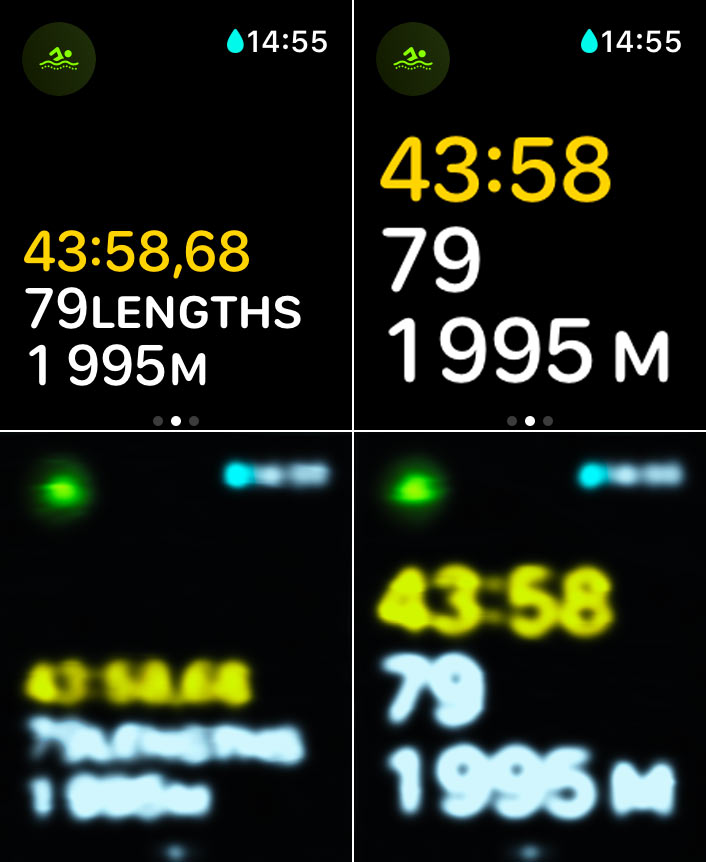
Apple Watch swimming screen

On the left is how Apple Watch displays a swim workout, on the right is how it could:

And below is what you can see in both cases, if your goggles are fogged up (Photoshop simulation).

Apple’s design is silly: what’s the point of using small type when you can use large type? But it’s especially silly that even if you enable enlarged fonts in the accessibility settings, it doesn’t apply to the workout screens anyway.

Reversibility of an interface element

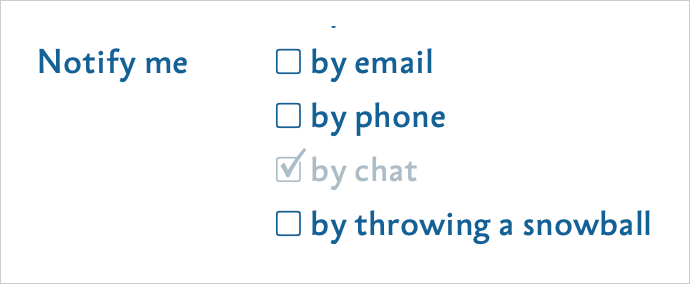
Reversibility is a property of an interface input control, where the user can return the control to its initial state at any time. Or, more generally, where the user can freely switch between all available states. Irreversibility, consequently, is when the element has states to which it cannot be returned after some actions. Well-designed controls are reversible.

An example of an irreversible control is a group of radio buttons of which none are initially selected. Once one option is selected, there is no way to return the group to the initial blank state. This creates discomfort and frustration. In a proper radio group exactly one element is always selected, including in the initial state, so the group is reversible.

But what if picking an option is required to proceed to the next step? There is no point in unselecting all options! Why would the user want that? Well, the reversibility requirement stands even if the initial state is not “valid”. This has to do only with the mechanics of the interface control, not with its role in the interface external to it. It affects the sense of control. Consider this: a text input field does not resist having all characters erased from it, even if it is required. Any other element, if it has a blank state at all, should let you return to it. In the case of a radio group, remove the blank state altogether by providing a default option.

Here’s another example of irreversibility. Suppose you have a required text field, initially blank. The user clicks the field, then clicks another element, leaving the field blank (or fills it in, but then erases everything). The system now draws a red border around the field, hinting that the field cannot be left blank. Now it is impossible to return the field to its initial “clean” blank state. A solution would be to fade out the red border so that the field returns to the initial state after a second.

How I stopped using Duolingo

 4 min

Duolingo used to be a great app. I opened in to practice almost every day. But then they changed the design:

The redesign rolled out gradually — apparently they were testing it. There was a period when the iPhone was already broken, but it was still possible to use it with an iPad or on the web. I chased the old design for a while, but soon after the final switch to the new one I lost interest in studying.

There was a lot of outrage online about the change, including in the comments under this video. But the design has not been rolled back, which means Duolingo’s numbers are good.

Before and after:

In the old design, as you went through the lessons, the next ones opened in bundles. In the example on the left, you could choose from: basics, phrases, animals, food, family. Sometimes I was in the mood to learn something new, so I tapped an untouched topic. Sometimes, on the contrary, I wanted additional practice in something I already had an idea of, so I went there. When I made a choice to learn something, as the owner of my choice, I was motivated to learn it. The interface was informative and engaging with a variety of topics. Sometimes it was fun to scroll up and be pleased with how much I already learned. Sometimes it was interesting to scroll down, to the lessons locked so far, to be inspired by what awaits next. Maybe the remaining required lesson isn’t very appealing, but look at what’s there to learn afterwards!

The new design has none of that. The endless wave of identical coins means nothing, you just have to tap the green one: you have already completed the previous ones, while the next ones are not available yet. If you scroll up or down, the endless wave of already completed or not yet available unsigned coins continues, and there will even be a button to scroll back to the green coin. The informativeness of this screen is literally zero, it gives you no choice, it exists only for you to tap the one single button! Even the iPad cat games are more interesting.

In the video, they tell us that was the intent:

We’ve redesigned the home screen to better guide you through lessons.

Translated from marketing speak, “now we decide what you learn”.

Follow a path crafted by our learning experts to help you better reach your goals.

It’s different for everyone, but for me, “reach your goals” is the weakest motivator in life. I want to effortlessly enjoy the process and then suddenly be thrilled to discover my own accomplishments. Duolingo doesn’t give me that anymore.

And don’t worry, we’ve kept all the progress you’ve made so far

What are you talking about? I no longer see the huge list of topics I’ve completed. From my point of view, all the progress I had, I’ve lost.

Anyway, it was a great app.

Onboarding

 9 min

Often when we open an application, we see a screen that tells us about it or about some recently added features. The screen may consist of several pages that you have to flip through one by one. There may be a button to skip it all and go to the main interface of the application. This is commonly referred to as an onboarding screen.

It is bad practice to do so.

The statement may seem ridiculous to you as so many products have onboarding screens. Unfortunately, most of their creators don’t even ask themselves the question “what if we are wrong?” In some occasions I asked them why they do it, and I heard: “well, it’s onboarding”. People don’t even realize that this doesn’t answer my question — the belief that this is the right thing to do is so strong.

Let’s examine what’s wrong with this kind of onboarding, what task it’s designed to accomplish, and how to accomplish that task well.

Summary: The onboarding screen appears at the wrong time, prevents you from using the application, and when you really need the information from it, you can’t find it anymore. This causes frustration and reinforces the habit of skipping messages without reading them. It is better to make tutorial elements an integral part of the interface and allocate a permanent place for information about new features and changes.

Why not introduce the application at first launch

First, consider an onboarding screen that introduces you to the application as a whole.

In the dumbest case, it’s advertising: onboarding pages praise the app and its features. However it is nonsense to advertise an app that the user has just installed and opened: we have already received the desired attention; it is now time to stop seeking it and start converting it into value. The user also has their expectations of the application and wants to start using it. They now have to overcome our annoying obstacle. So advertising should just be removed.

In a slightly less dumb case, onboarding tries to teach you how to use the application: this is how you order a pizza, this is how you make a money transfer. If the user already knows this, it’s again just an annoying obstacle to their goal. If the user doesn’t know this, however, we present them with an uncomfortable choice. They need to read our onboarding screen carefully and memorize it so that they can later apply what they’ve learned to the real interface, which they haven’t even seen yet. But as a user, it’s impossible to estimate how mindful I have to be and how thoroughly I have to memorize. Maybe I will be able to figure it out on my own in the real interface?

Just think how crazy this is. You buy a new washing machine, and they forcibly hand you the owner’s manual and say: “You can throw it away, but if you can’t understand something later, no one will help you”. Uh.. Can one not figure it out without the manual? We don’t know. Well, can’t I just leave the manual in the box and take it later if I need it? No, you can’t: you either have to read it now or throw it away.

It is worth analyzing the main interface carefully. How to make it clear without the initial tutorial? If you can’t do without hints, how can you provide them so that they don’t interfere with the usage of the application? Maybe you need to add explanatory text somewhere. Maybe in the tricky places you need “?” buttons that open the detailed explanation. Or maybe you need your own educational YouTube channel that is easily accessible from the interface.

Why not talk about new features after an update

Now consider an onboarding screen that highlights new features and changes.

The same problems are even more acute here. When somebody opens your application for the very first time, they probably have little expectations. However, when the user is familiar with the application, when they’ve been using for some time already, they launch it with a specific purpose, for example, to check delivery tracking or to pay the household bills. Most likely, they have a “plan”: they remember what corner they are going to tap first, what will appear next, where they are going after that. But suddenly, instead of an interface they expected, they get a presentation of new features they don’t need right now!

In this situation, the urge to skip the onboarding screen is even stronger, and so many users simply won’t learn about your innovations. Again, not because they don’t need them at all, but because they don’t need them at that moment. If your application is being actively developed and updated, the constant talk about changes will be annoying, and the habit of skipping them will become more entrenched each time.

To keep users aware of what’s new, it’s a good idea to provide a permanent place in the application for this purpose. My favorite example is the messenger Telegram:

The designers took advantage of the nature of the application: the information about new features comes as chat messages from a special “Telegram” account. When you open the application, you see these messages on an equal footing with others. You can chat with your friends or respond to important work messages first, then learn about Telegram itself. Each feature is revealed in a separate message with a nice video. The message can be forwarded to someone who, you believe, will benefit from the feature — the advertising effect is amplified for free. And, of course, no one prevents you from returning to these messages at any time later. That’s exactly what I did to take the screenshots.

Even if your product is not a messenger, you can find some permanent place to talk about new stuff. And for people to remember to go there, you can put a red badge when unread items appear. What’s important is that the rest of the application’s features are available even before the user has read everything.

Good user interface and good business

I start my course User Interface Fundamentals with the subject of humaneness: the interface should be for the human, not the other way around. When an interface stands in the way and pisses you off, it’s a bad interface. In the lecture on habit, I talk about the problems with confirmation windows and blocking messages, and onboarding screens are examples of that. They reinforce the habit of reading nothing and agreeing with everything.

Onboarding screens have problems similar to those of confirmation windows, yet both things are very common. The reason is that in product development, the goal is rarely “to make the user happy”. Typically, those in charge of a product look at other metrics. Let’s say the onboarding screen is watched by 10% of users and as a result sales grow by 1%. Who cares then if it disturbs the rest of us? The gain is greater than the loss, so fine.

Reader Egor, who works as an analyst in a large product, once wrote to me:

Do you believe an a/b test would help to settle this debate? Say, we’ll show the onboarding screen to half of new users and skip it for the other half, then look at two metrics: the conversion rate from first session to a completed order and the time from application launch to completed order. If the conversion rate with the onboarding screen is higher while the time to order does not increase (i.e. the time a user spends in onboarding is won back later), would you agree that onboarding screens are justified? And how do you generally feel about validating product hypotheses with a/b tests?

I would agree even without the test. But what this test would prove, at best, is that it is better to tell about the application by onboarding than not at all. And what I’m saying is that there’s a better way than onboarding.

As for validating product hypotheses, it has little to do with a good user interface. Sometimes you can boost the metrics by degrading the interface: by reducing the clarity of options, by nudging the user towards a disadvantageous purchase; by making it harder to unsubscribe. A good interface is only sometimes important to product success, but sometimes it is not. Just look at Facebook or Booking.com. I wouldn’t want to have anything to do with making these very successful products.

In a large product with pragmatic management, adding an onboarding screen may indeed be the most feasible solution. It doesn’t interact with the rest of the application in any way, it doesn’t add any new logical connections, a separate team can even be responsible for it. It is much easier, faster, and cheaper than thinking about how to improve the educational properties of the product itself.

But not all businesses operate on squeezing metrics at all costs. Some have a different set of values, where product quality and user delight matter. Sometimes there’s an opportunity to think carefully about these things, rather than just do what everyone else does.

I find that onboarding is often done because the creators genuinely think it’s a good idea, rather than for the pragmatic reasons mentioned above. They don’t even look at the metrics, don’t compare user annoyance with the gains in conversion rate. They just put up a splash screen because they absolutely want to talk about the new features! In such cases, when I talk about the disadvantages, people are happy to engage in a discussion of alternatives.

Yes, doing things well is usually harder than doing them poorly, but the effect can also be greater.

One more question please

“Ilya, it all makes sense, but there’s a really amazing feature that we’ve been working on for two years. We even made a video about it! We want to put it in the onboarding screen, because it’s important for us that everyone sees it!”

It’s great that you’ve made a feature that you are proud of. I sympathize with your desire to tell everyone. If you put it in the onboarding, you’ll blow the opportunity. How could you communicate about the feature in a way that everyone will love it? Give this question at least a fraction of the care you gave the feature itself.

Introducing the book “Designing Transit Maps”

 4 min

Please welcome my second book, Designing Transit Maps. It’s a practical guide to transit map design and probably the most important work of my life so far. The digital book is released by Bureau Gorbunov Publishing. The publisher says:

The book speaks of transit maps history, important principles of their design, and how they evolve together with their networks. The author talks about techniques: plotting the lines, denoting the stops, choosing the fonts, and composing the final poster.

Few designers have an occasion to design a subway map. But the principles and techniques discussed are applicable to any tasks of complex information display: org charts, family trees, control-flow diagrams, fire escape plans, military operation plans, project timelines, architectural drawings. The book sharpens the reader’s eye and inculcates attention to detail.

Circuit drawings are beautiful in their own way, but they immediately tell the reader: “I’m for the pros”. This is not an option for public information graphics. The designer has to untangle complex ties, find the best way to represent key objects, correctly position the labels. No matter how sophisticated the material is, it’s crucial to achieve clarity and legibility in display. Transit maps are a great subject to develop this skill.

The book consists of five parts: The challenge, The principle, The layout, The details, and The system. The chapters of the book are being published gradually. We started with the first three chapters, “Maps and Reality”, “The first transit maps”, and “Transit map diversity” in January:

We followed up with “Map as a symbol” and “Finding a solution” in February, completing the first part:

By the way, each part ends with an interactive test covering its key ideas.

In April, we started publishing the next part with the chapters “Correspondence between lines and routes” and “Color coding”:

In June, we released the chapters “Geometry”, “Orientation”, and “Scope”:

Today, we are releasing the closing chapters on the second part, “Granularity” and “Freedom”, and the chapter’s interactive test:

So two fifths of the book are already available for reading, and I very much encourage you to subscribe and read the book. Learn more about the book and its revolutionary digital format on the publishers website. There are also readers reviews and a free sample chapter “Bends” from the fourth part.

Enjoy and tell your friends and colleagues!

Earlier Ctrl + ↓