Does it mean that no device and no app should ever be used with a stylus? I do not think so and I suppose neither did Steve. The key word is need.
A stylus for a touchscreen is the same as a pencil for the “real life”. There is a place for it, but it is not required. Your fridge does not require a pencil to open it. Your bed does not require a pencil to take a nap on it. And so your smartphone does not require a stylus to make a call.
But when you draw something, you usually want a tool: a pencil or a brush — or a stylus, if you use an iPad. Styli are not included with the iPads, but make perfect sense as separate products.
Wow, Forebruary was an accidental hit. I’m getting lots of feedback and questions, so I thought I should answer some here. Thank you so much for your feedback!
I want to print it, do you have a PDF?
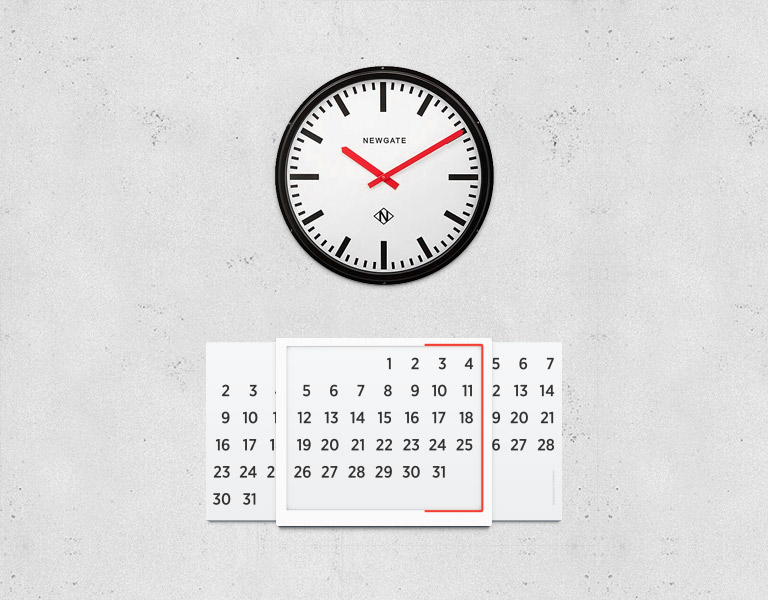
No, sorry. Printing is cheap these days, so if you are OK with a printed calendar, why not just print a usual calendar every month? Forebruary should be made from nice and expensive materials, it should look great next to a beautiful clock, like this Newgate:
How is Forebruary pronounced?
Starts like “forever”, continues like a month name.
Why a month name?
Because it looks like a wide month.
I already saw this idea before!
Oh? I have not. I’m not sure what I am supposed to do now that you’ve told me, but thank you anyway.
How should I know how many days a particular month has?
Forebruary cannot help with it, it only matches a week day to a date. Many watches also have 31 (or more, sic!) days, you manually reset them to the first each month. If you consider it a major drawback, then Forebruary won’t suit you.
How should I know where to move the frame when a month begins?
You consult your phone, or computer, or even another calendar. It’s like setting time on your clock: you look at another clock you know is correct and adjust yours accordingly.
Why haven’t you put the week days on the frame?
I removed them right before publication. It looks cleaner sans them and works just as well.
What about people whose weeks start on Sundays?
An alternatively painted frame can be produced for the countries where week starts on a weekend, no big deal.
How to buy it?
There is no way so far — Forebruary exists only as a picture. I will update the site if this changes (use RSS or Twitter to follow me). I am actually thrilled by how many people asked this question. Thank you all guys.
It has always bugged me that every year people produce and sell wall calendars for the next year. It is hard not to notice that there are only seven different months. Even one full-year calendar already has duplicate months. When something bugs a designer, designer makes a project.
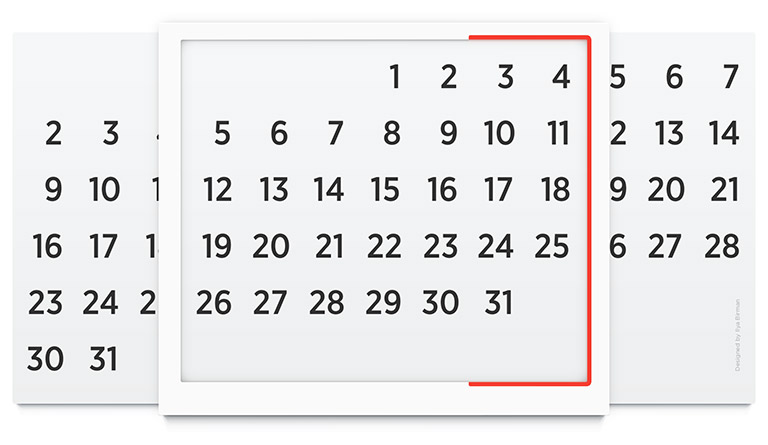
Intoducing Forebruary, an endless wall calendar. The movable frame above the surface contains the month needed. Here is August 2013:
The red stripe denotes the weekend. For the United States, where week starts on Sunday (but Sunday is anyway considered a part of weekend), alternative frames can be produced.
Instead of paper, nice materials are used to produce Forebruary. That’s because it is not a throwaway thing. It is designed to look good next to a clock.
Here is my collection of the London Underground voice announcements. This post has been significantly updated twice (in March 2014 and in May 2016). I still don’t have any announcements from the Metropolitan and Waterloo & City lines, and the DLR.
It is notable that on the Jubilee and Northern lines, they say “this train terminates at S” instead of “this is a L line service / train to S”. I also like the Northern-line expression “This train terminates at Morden via Bank” as a shorthand for “This is a Bank branch train, and it terminates at Morden”.
Piccadilly line
Covent Garden — Green Park (towards Rayners Lane, Uxbridge):
There is no Northern line on Oxford Circus, but it’s mentioned nevertheless, presumably due to its importance (the Hammersmith & City was mentioned only at King’s Cross).
Do you have any interesting London Underground announcements recorded? Please send them to me at ilyabirman@ilyabirman.net.
This post has been updated on March 17th, 2014 with recordings sent by Yaroslav Eremenko (all the Northern line and some others) and another reader who preferred anonymity
Let’s talk about iOS 7 — it clearly has not been covered enough lately.
The new flat transparent toolbars have a curious quality: they create a problem which Apple specifically says they are made to solve.
Apple says nothing should distract you from your content. The user interface should not get in the way. In iOS 6, the website you are looking at or an email you are reading are squeezed between the heavy and overly decorated toolbars. They dominate the view, says Apple.
So in iOS 7 they make the content and the chrome indistinguishable. Before, though the chrome was indeed heavy, I was able to filter it out, because it was so different than the content. But now everything looks the same. It is so much harder to focus on my content.
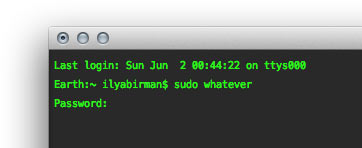
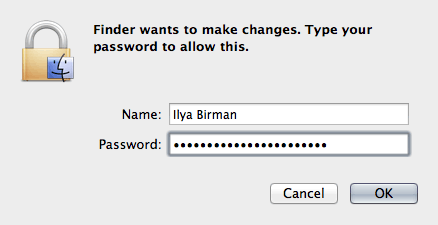
When you enter a password, Terminal does not show anything:
This is bad as you get no feedback from the computer.
Displaying a bullet for each character is much better:
No one can see your password, but you can be sure that your input is being received by the system.
But if you password is long and you want to count the bullets to make sure you have entered all the characters, this display may give you a hard time. In most cases if you are unsure it is easier to just erase everything and enter the password again.
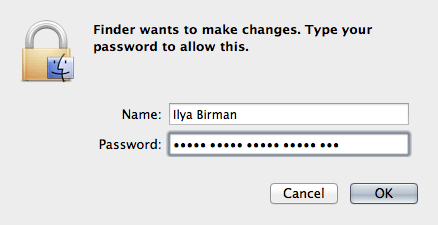
This can be improved by grouping the characters visually:
Now it is obvious that the password is 23 characters long. If you password is 24, then you have missed a character.
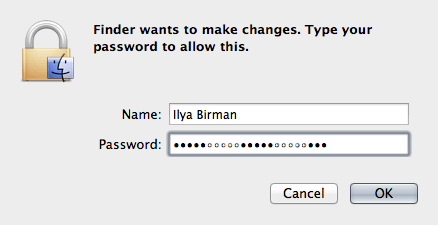
Alternative design:
If this is used ubiquitously, users will think of their passwords as of groups of terms, which will possibly not only make them easier to enter, but also easier to remember.
All user interface designers should know and apply the Fiitts’s law. It says that the larger and the closer the target area is, the easier it is (i. e. takes less time) to reach it. Immediate corollary: make buttons big.
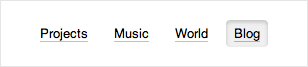
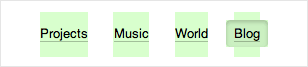
What is not so obvious is that instead of making an element bigger, you can just enlarge the click area. I do this with the main menu on my site.
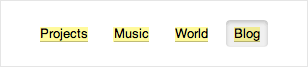
If I did not care, the click zones could have been like this:
They are actually three times larger:
This makes the links so much easier to click.
As visual designers do not usually denote the click areas, this is a trick for web developers to know.
By the way, making click areas too large does not pay off, as the Fitts’s function is logarithmic.
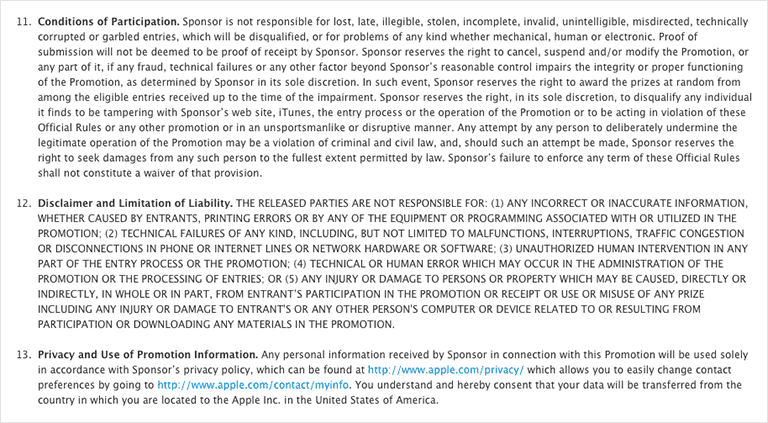
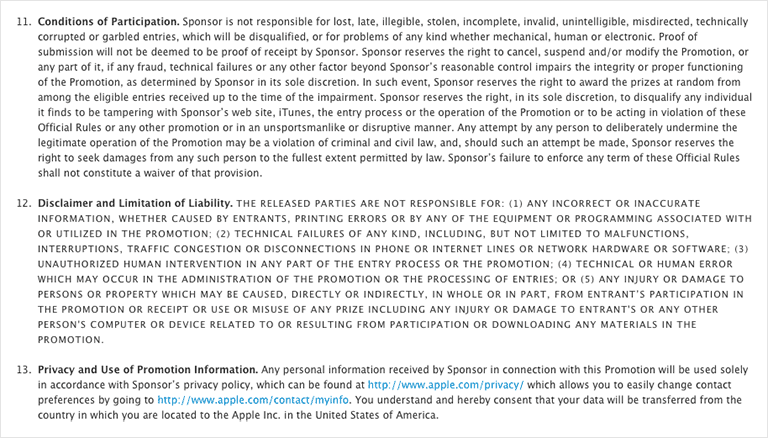
Some lawyers think they should shout at their readers by using all-caps text — this is how they communicate the idea “this is important”. Here’s a fragment of some Apple document:
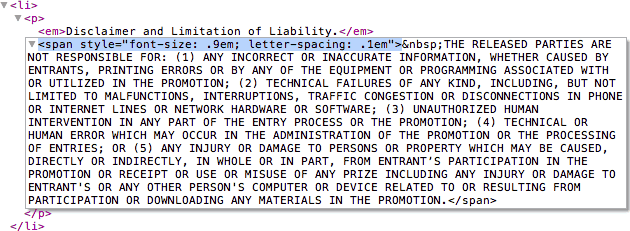
The lawyers do disservice to themselves: all-caps text is much harder to read than normal one. If you are a designer, you are responsible for this, but unfortunately changing it is often beyond your power. So here’s what you do when no one is looking:
And all-caps becomes small-caps:
The text still stands out, but it no longer looks ugly and most importantly it is noticeably easier to read. We’ve used this trick in Getwear’s terms of use and other similar pages. See also: Typography for lawyers.
As you may know, modes are bad. Even worse are timed modes often used in the human interface of consumer electronics.
A mode is a state of user interface in which the same user action leads to the same result; in different modes, results of the same actions are different. Photoshop is famous for its exuberant use of modes: a click within an open image may do anything depending on what tool and options you have selected. The problem with modes is that you are not constantly aware of the current mode, which leads to errors: you want to draw a line, but accidentally create a gradient fill.
Now imagine a TV remote. Left-right buttons change volume and up-down buttons switch channels. These four buttons are also used for menu navigation. Now, when you are in the menu and you want to make the TV louder, you press the right button through habit. Unfortunatelly, now the button means “make screen aspect ratio wider”. The menu is not just a mode, it is a timed mode: if you don’t press anything for 10 seconds, the menu will be closed. If you are trying to set up this TV with a help of a user manual, you will be very frustrated: every time you look up the manual, the menu disappears and you have to start over.
Timed modes in a car UI are not just frustrating, but can also be dangerous. To change the audio bass level, you have to go to the menu, find the EQ settings, select “bass” and then adjust it with a knob. By the time you get to the necessary menu item, the traffic light turns green, so you have to postpone the adjustments until the next traffic light. Chances are, you will then need to navigate the menu again. If you know that the interface will not wait for you until the next traffic light, you will be forced to adjust bass while driving.
If you cannot avoid modes in your user interface altogether, at least don’t use timed modes. If I have changed my mind and don’t want to set up the TV or adjust the bass, I will just press cancel myself.